Guidelines for Using ProductIP Demo Accounts
ProductIP Demo accounts: Instructions for account admins
current admins = Ralf and Faye
Non-admin role = demo viewer & recorder only
-
❌ No editing
-
❌ No creating
-
❌ No deleting
-
✅ View only
-
✅ Create screenshots & videos only
-
✅ Coordination via admins
Tabs:
- Only admins create tabs.
- The Essential and Advanced account holds the relevant tabs about Document Request
- The Professional and Enterprise account holds the relevant tabs of Technical File Request.
Technical File Creation:
- Only admins create technical files.
- All Technical Files are to be flagged with tags on why they were created. Every reason has its own tag. There could also be multiple tags in one TCF:
- Best Practice (includes documents and requirements)
- Document Request Demo (to showcase how a doc-request works)
- Technical File Request Demo (to showcase how a TCF request works)
- BOM Demo (to showcase how the linking between components and products work)
- Dashboard Demo (TCF that are only created to get a good looking dashboard)
- Document Risk Demo (TCF that are created with a specific Doc Risk to visualize the different results based on doc risk)
- DPP demo
- Batch Based Demo (TCF that are created to show different batches of 1 product)
- more …
- Only admins create technical file tags.
- Technical Files without tags, that are created without permission will be deleted out of the account. This is possible by merging a TCF with a Pre-Draft and then deleting the Pre-Draft. We need to keep our accounts clean.
- Only manual TCF creation in the demo accounts. No imports.
- Always use a market release date far in the future. Always use a deadline far in the future. (less often need for an update)
- Add multiple variations to a technical file to indicate the possibility of combining.
- Indicate via primary and secondary user who is responsible for the technical file. We will all log in with the same login data and cannot find the responsible for a TCF. Only use the first name.
Columns (technical file tabs and also document overview)
- Should mainly be based on the „standard“ / default setting
TCF Pictures
- Always add pictures to the technical files.
- Use AI to generate them.
- White background (no background noise!)
- Actual product photos (no drawings, comics or animated pictures)
- Shot from a 45° angle
- NOT containing logos, fonts or numbers
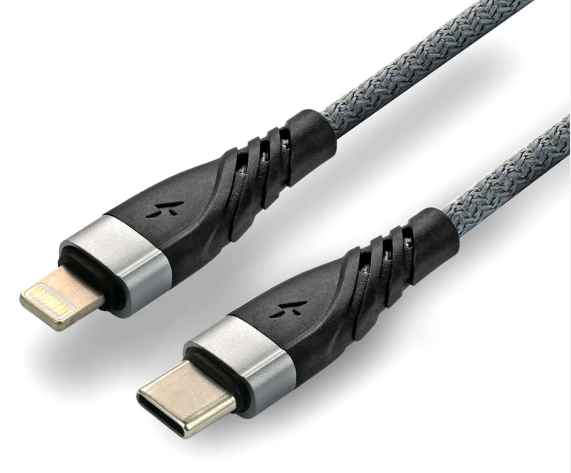
- Examples

Regulatory settings:
- Only admins create requirement fulfilments and doc risks.
- Admins do this only in alignment with Regulatory (Arthur)
Keeping the account clean:
- Admins review the accounts regularly (bi-weekly or monthly). Especially important:
- Are new technical files created? Do they hold confidential / real data? Are they set up according to our general rules?
- Is the address book still clean?
- Are „Brands“ still clean?
- Are the market release dates / reorder expiry dates up to date? Update the TCF frequently.
- Are the columns still in place in all tabs? Don’t forget to also check the columns in the document overview
ProductIP Demo accounts: Instructions for users
Access:
Never enter demo accounts with „account switch“ but logging in from a different browser as an actual user with password. Only this way you will get the actual user view. This deactivates ProductIP visuals such as the account switch or fields that only ProductIP staff can see (e.g. reorder expiry date tool tip).
Video and screenshot rules:
If you create videos or screenshots, you always must record them in the right TCF. Check the tags of the technical file to see what is set up in the related technical file.
Don’ts:
- Don’t create, modify, or remove anything in the account. These accounts are just for taking screenshots and recording videos. Only admins have the right to create, modify or delete data. If you need to change something, coordinate with one of the admins. This includes the creation, modification, and deletion of:
- Technical files
- Documents (metadata, links)
- Tabs
- Regulatory settings
- Account settings
- Pictures
- Tags
- Entries in the address book
- Suppliers
- Data in account settings (user, user groups, brands etc.)
- Data in regulatory settings (requirement fulfilments, doc risks)
- Columns
- …
- Don’t share anything to or from these accounts.
If you need something created, modified or deleted from the accounts, please coordinate with the admins for quick help. The Teams chat “Biweekly Teams Customer Operations” is the best place to get help.
Was this article helpful?
