Manage your profile and signatures
Manage your profile and signature to keep your personal information up to date, set document reminders, and use digital signatures within the platform. This helps ensure accurate contact details, timely notifications, and secure authorisation when signing or approving documents.
Feature access
This feature is available to all ProductIP users across all plans.
Before you begin
Ensure your profile information is accurate and that you have access to the platform.
For signatures, use a device with a mouse or a mobile phone to draw your signature.
Video instructions
A short step-by-step guide will follow soon!
Steps
There are four tabs under My profile. Follow the steps below to manage your profile, e-mail addresses, settings, and signature.
Profile
- Go to My profile (the wrench icon) in the top right corner.
- Review General information, Contact information, and Address.
- Click Edit on the right side to update the general information, contact details and preferred e-mail language.
- Click Save to confirm.
E-mail addresses
- Go to My profile in the top right corner.
- Click E-mail addresses.
- Find an address using the search field.
- Click Add a new e-mail address to add one.
- Click the envelope icon on the right to resend an E-mail address verification. This action is only available for unverified email addresses.
- Click the key icon on the right to change the primary E-mail address. This action is only available for verified E-mail addresses that are not primary.
Note: If only one E-mail address is registered on the account, it is automatically set as the primary E-mail address. The primary email address is the address to which the platform sends email notifications, for example when someone reports your document request as saved or when you have not logged in for more than a month.
7. Delete an E-mail address if it is no longer needed.
Note: Deleting an email address can have significant consequences. Access to document requests, file requests, and shared files is tied directly to the verified email address in the user’s account. If you delete an email address that has received requests or shared files, the user — and their colleagues in the company account — will immediately lose access to them.

Settings
Set reminders to receive notifications when a document expires.
- Go to My profile in the top right corner.
- Click Settings.
- Enable or disable document reminders by selecting On or Off in the drop-down list.
- Select the Reminder period in the drop-down list.
- Click Save changes.
Click Change password to change your account password. (See Change your user account password)

Signature
Digital signature management allows you to add your signature in digital form, manage who can use it, and request permission to use signatures from others.
- Add your own signature
- Go to My profile in the top right corner.
- Click Signatures.
- Click Add signature.
- Draw your signature in the field using your mouse, or scan the QR code on the right side to draw your signature on your mobile phone.
- Click Clear signature to reset if needed.
- Enter your Name (required) in alphabet characters.
- Click Save.

- Request the signature of someone else
You can request a colleague to share their signature and grant authorization for you to use it.
- Go to My profile in the top right corner.
- Click Signatures.
- Click Request signature.
- Enter Name, Email, and Messages (required).
- Click Send request.
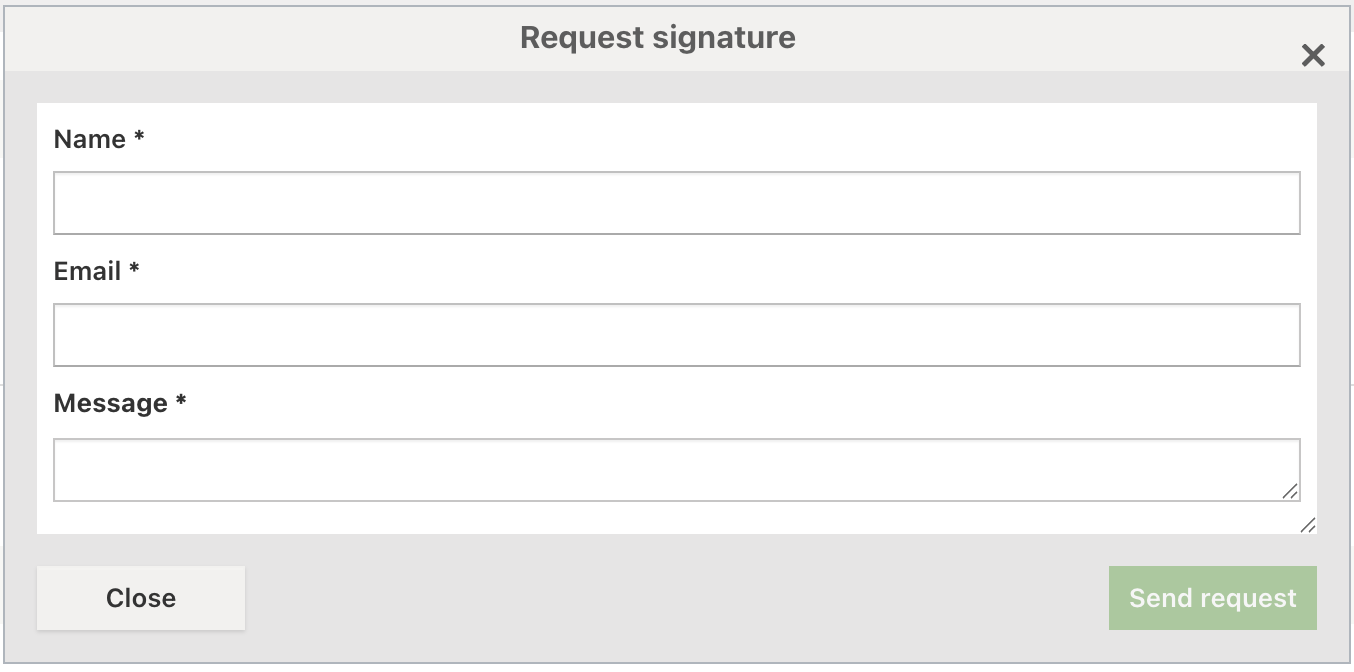
The requested signature appears under Pending request. Once authorised, it will appear under Owner of Authorised signatures.
- Manage authorisation
Authorise colleagues to use your signature.
- Go to My profile in the top right corner.
- Click Signatures.
- Click the three dots on the right side of the user list or select the checkbox of the user.

- Click Manage authorisation.

- Add authorised users using the search field. Please note that you can only authorise users in the same Company account.
- Select an end date of authorisation (optional). After the expiry date, the valid period must be renewed.
- Click Authorise user(s).

- The authorised user (and expiry date) appears on the right side and under the Owner of Authorised signatures.
- Select the checkbox or click the three dots to edit the expiry date or revoke authorisation.


10. Select the checkbox of the Owner to delete the authorised signature.

Tips and best practices
- Use the search field to quickly find e-mail addresses or users.
- Regularly review authorised users and expiry dates.
- Keep your signature clear and simple for better visibility on documents.
- Before deleting an E-mail address, make sure to:
1. Add and verify a new E-mail address before deleting the old one.
2. Assign requests and shared files to the new verified E-mail address.
3. Confirm access is working properly before completing the deletion.
Troubleshooting
- Signature not saving?
Ensure you have entered your name in alphabet characters and click Save after drawing your signature. - Not receiving document reminders?
Check that reminders are set to On under Settings and verify your primary e-mail address. - Signature request still pending?
Ask your colleague to check their e-mail and authorise your request.
Still experiencing issues? Contact ProductIP via helpdesk@productip.com.
Related articles
Change your user account password
Create and sign the EU Declaration of Conformity (DoC)
Was this article helpful?
