Collaboration and sharingRequests
Send a technical file request
Request your supplier to create and share a complete technical file through the platform. This helps you verify product compliance, track documentation progress, and assess supplier responsiveness — all from one central location.
Feature access
This feature is available for Professional and Enterprise customers. Users must have the right to send out file requests.
Before you begin
Ensure:
- You are in the Technical files overview
- The technical file is in pre-draft status
- Supplier contact details are correctly linked to the pre-draft technical file
- Confirm the article number(s)
- Confirm the product name(s)
- Merge articles into a technical file if they meet the requirement: same supplier, materials, requirements and documents. Suppliers cannot merge files themselves; if merging is needed, they should decline the requests and ask the customer to merge them.
Video instructions
Prefer to watch instead? A short step-by-step guide will follow soon!
Steps
1. Enrich the data of your technical file(s)
Market release date, the regions and the product category can be left empty to allow your supplier to complete this information or you can fill in the details.
Note: When sending a prepaid technical file request, the supplier can change the market release date and product category you have entered. The costs for it is 1 credit per change.
2. Select your method to send out the Technical file request:
Option 1: Send out in batch
- Select the technical files.
Note: The technical files must be from the same supplier. - Choose action Request technical file in the dropdown menu at the bottom of your screen and click Execute.
Option 2: Send out per technical file from the overview
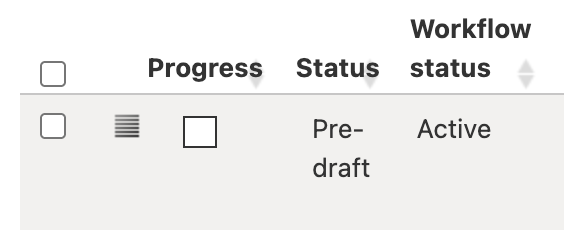
- Select the checkbox in the column Progress of the technical file in the technical file overview.
Option 3:
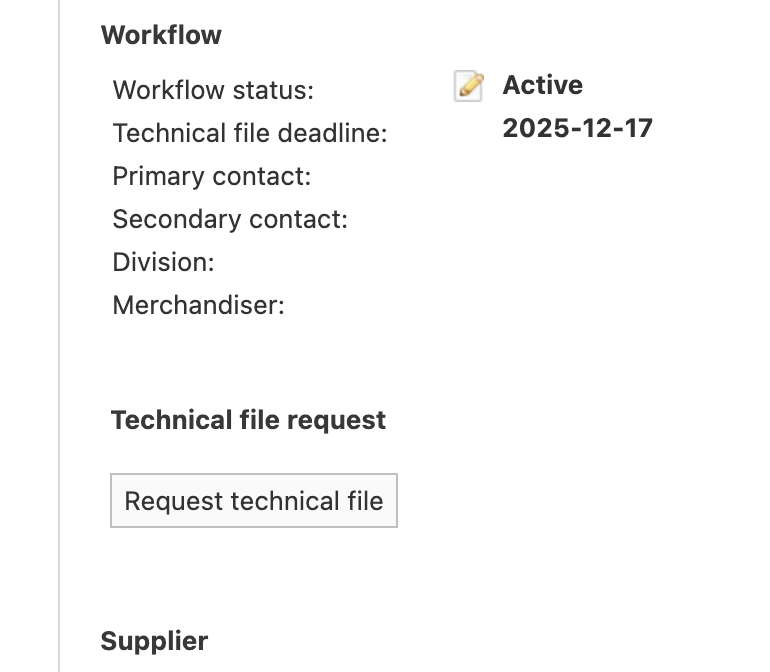
- Open the pre-draft technical file.
- Click the Request technical file button
- Type your message or select a template text you have prepared before under Manage templates.
- Select Prepaid if you want to bear the costs for the technical file request.
- Add up to 3 attachments to the technical file request.
- Click Send.
Tips and best practices
- Use pre-drafts to identify missing documentation early.
- Create custom tabs and templates for faster navigation and consistent messaging.
- Keep merged files organised per batch or production location.
- Enrich you pre-drafts with
- expected market release date
- regions in which you want to sell the product
- product category
- Prepare your template invite text
Troubleshooting
- Supplier didn’t receive request
Check if the correct supplier contact details are assigned in the pre-draft.
- Company-specific requirements missing
Add your company as a Customer under Control Panel > Company Account > Customers.
FAQ
- Can my supplier merge files on their side?
No. Only you can merge pre-drafts. Suppliers can decline requests and ask you to merge.
Was this article helpful?
Leave a comment
Share your thoughts or suggest an improvement for this article.
